IPTV on Samsung & LG Smart TV: The Setup Guide 2026
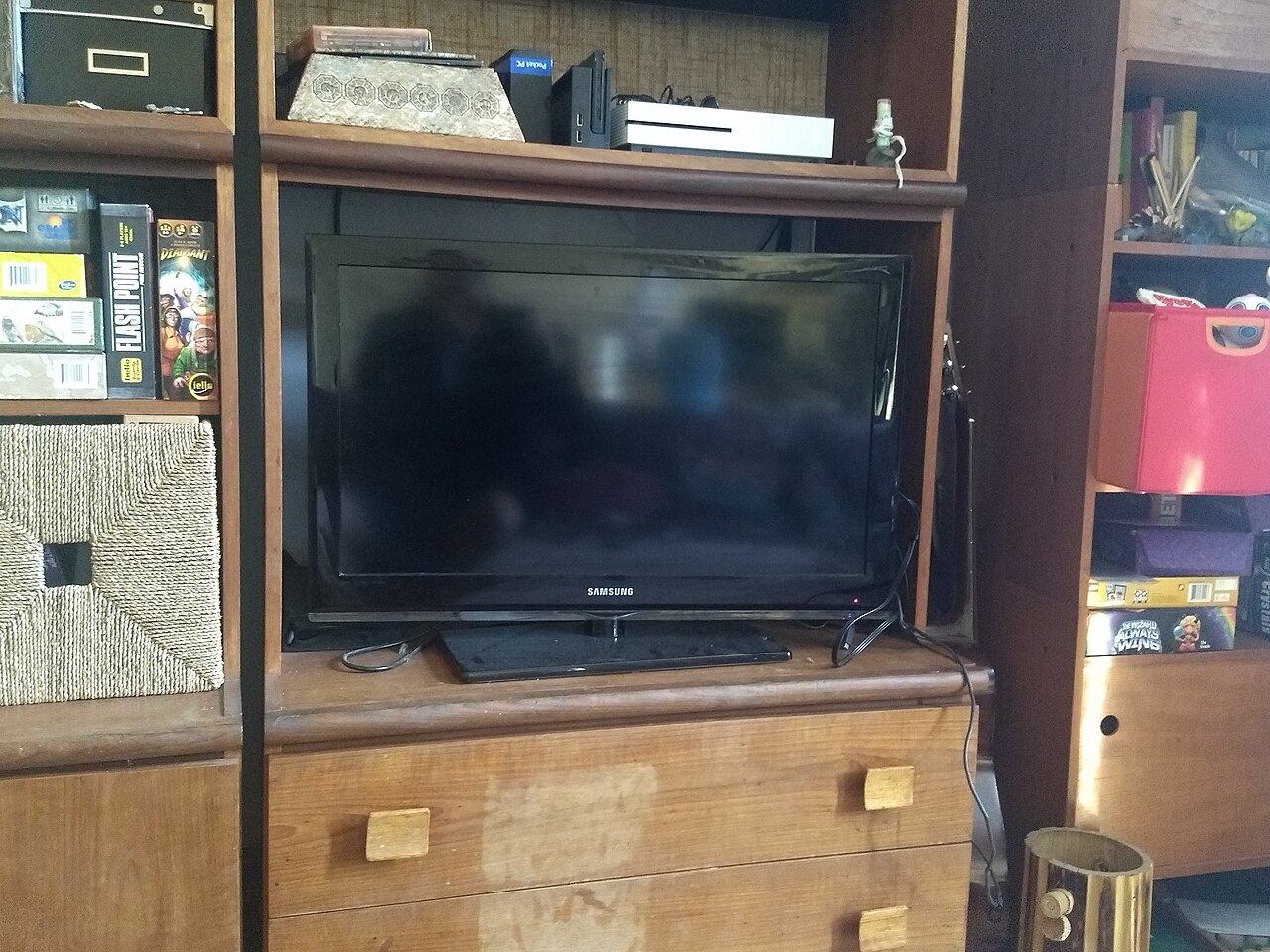
Samsung, LG, Sony, Philips: most recently bought televisions are Smart TVs that can install apps. That means you don't need to buy a separate set-top box to enjoy IPTV. This guide explains how to install IPTV on Samsung and LG Smart TVs depending on the system of your TV, step by step.
Samsung (Tizen) and LG (webOS): the simplest approach
Samsung TVs run on Tizen and LG TVs on webOS. Neither store officially carries TiviMate or IPTV Smarters, but two solutions exist:
- Use official store apps (mainly SS IPTV, Smart IPTV), available for free on the Samsung App Store or LG Content Store.
- Recommended option: plug a small Android box or Fire Stick ($20-40) into your TV for more apps and smoother performance.
Want a bigger app selection? See our roundup of the best IPTV apps for 4K.
Method 1 — Install an app from your TV's store
Once installed, open the app, register your MAC address (shown on screen) on the app provider's website if required, then add your playlist from the main menu.
Method 2 — Install via USB (an .apk file)
This works mainly on Android TV sets (Sony, Philips, some recent Samsung and LG models):
- Download the IPTV app .apk file on a computer.
- Copy it to a USB stick and plug it into the TV.
- Open the file from the file manager and allow installation from "Unknown sources".
Set up your IPTV41 subscription
Whatever method you pick, the configuration stays the same:
- Xtream Codes: enter the server name, username and password received by email.
- M3U playlist: paste the playlist link into the app.
Unsure what to use? Our guide on Xtream Codes vs M3U explains both formats clearly.
Tip: true 4K on the big screen
A TV that good deserves great content. With IPTV41 plans you enjoy channels and live sports in 4K, as long as your connection delivers at least 25 Mbps. Multi-screen even lets someone watch another show on a phone or tablet while the family sticks with the big screen (see our multi-screen guide).
Ready for your IPTV plan?
With IPTV41 your Xtream Codes and M3U playlist are delivered within 10 minutes of payment.
View affordable IPTV plans