How to Install IPTV on Fire Stick: Step-by-Step Guide 2026
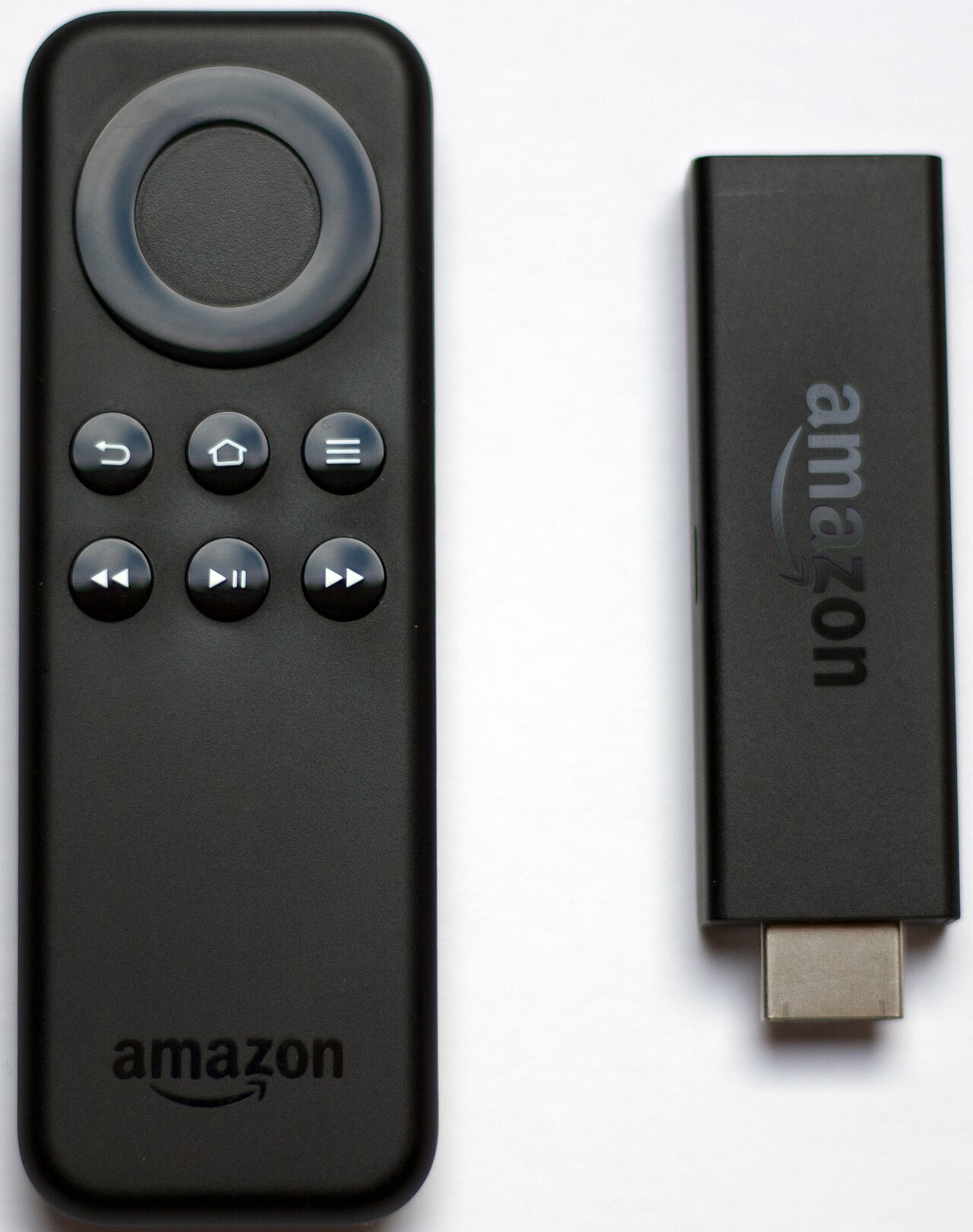
The Amazon Fire TV Stick is easily the most popular device for enjoying IPTV. A tiny HDMI dongle with a low price and a smooth interface, it turns any TV into a smart TV in seconds. In this guide we'll show you how to install IPTV on Fire Stick, step by step, with or without a computer, in about 5 minutes.
Why install IPTV on your Fire Stick?
Paired with a good plan like IPTV41, your Fire Stick unlocks thousands of live channels, movies and series in HD/4K:
- Easy to install: no technical knowledge required.
- 4K Ultra HD: newer models (4K Max) stream in 2160p with ease.
- Dedicated IPTV app: a clean interface that feels like a real TV box.
- Portable: plug it into any screen, at home or on the go.
Step 1 — Enable developer options
Now go back to Settings → My Fire TV → Developer options and turn on "ADB debugging" and "Apps from unknown sources". This step is essential to install an IPTV app for Fire Stick that is not in the Amazon store.
Step 2 — Install the IPTV app
Open Downloader, enable "JavaScript" mode in its settings, then enter the address provided by your IPTV provider (the .apk file). Wait for the download, install the app, then allow the permissions it requests (storage, etc.).
Step 3 — Configure your subscription: Xtream Codes or M3U
On the first launch, choose your connection method:
- Xtream Codes: the easiest. Enter the name, server, username and password (all provided at activation).
- M3U playlist: paste the M3U playlist URL from your provider.
Need help choosing? Read our article on Xtream Codes vs M3U: what's the difference?. IPTV41 provides both at activation, each fully compatible with this app.
Step 4 — Enjoy 4K and multi-screen
Your Fire Stick is now ready. Stream premium channels, live sports in 4K and your favorite VOD catalog. If the whole family wants to watch at once, some IPTV41 plans allow up to 3 simultaneous screens.
Troubleshooting common problems
- "Files not supported": uninstall and reinstall Downloader, then redo step 2.
- The app won't open: double-check "Apps from unknown sources" was enabled before installing.
- Buffering channels: use 5 GHz Wi-Fi or connect via Ethernet for a stable signal.
- Low quality image: make sure your TV is set to 4K and your speed is above 25 Mbps.
Ready for your IPTV plan?
With IPTV41 you receive your Xtream Codes and M3U playlist within 10 minutes of payment.
View affordable IPTV plans